Tuesday, March 22, 2011

Sony ericsson w810i blinking red light gdfs file error solution

Fault description:

Sometime sony ericsson mobile just blink red light on upper side or sideways red light when we power on mobile and insert charger into mobile . This fault occurs due to gdfs file error. In sony ericsson mobile sometime due to wrong software update or memory card problem gdfs file corrupts and mobile just shows red light blinking. 

Fault solution:

This red light blinking problem is very complicated in these mobile we have to use setool or cruesior box for this problem quick solution
Here we take setool as example here.
Here are some simple steps for repairing red light blinking problem: 

A. First fully charge mobile battery and check problem
B. Secondly connect setool to computer and open setook software
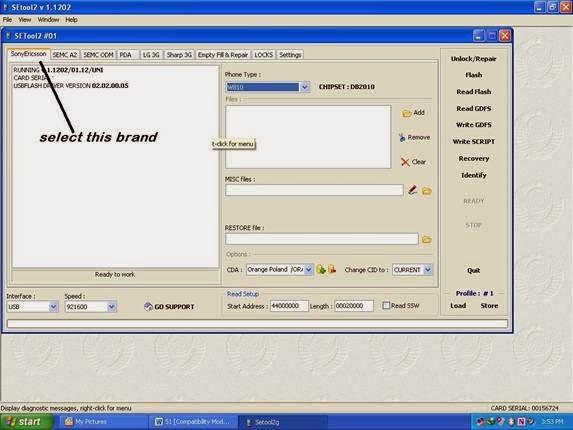
C. Now select brand from brand list and select model here we select w810i
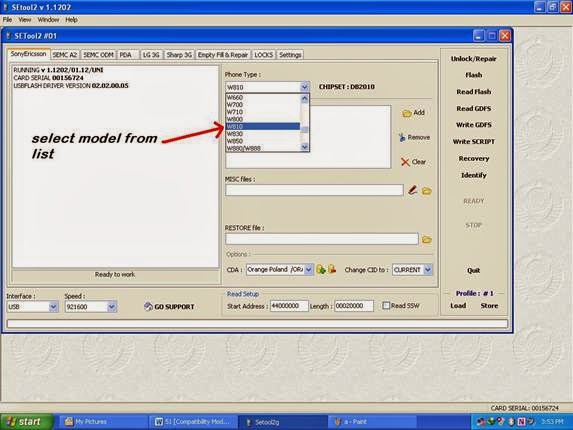


D. This is a db2020 chipset mobile
E. Now select bin file and fs file
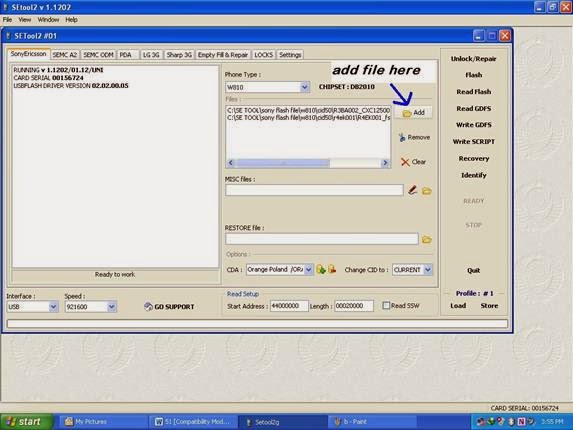

F. At last select cust file according to your country
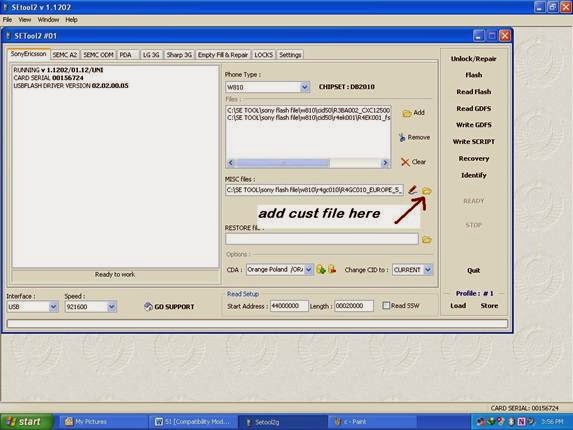


G. Now go to setting tab 

H. Tick mark customized phone after flash


I.        Now select flash button then it will ask for mobile connection then connect mobile then box will full flash mobile and after all done it will shows all information correctly. Then check mobile now it should power on properly.


Conclusion:
Red light blinking problem is major problem so use always appropriate cust file according to your country region otherwise problem will remain same.

Saturday, March 12, 2011

Samsung no service display problem solution

Fault description:

Samsung some time shows no service on screen then when we try to connect any call then mobile displays no service and there no network indication appearance on display .

Fault solution:

Samsung mobile Mostly shows no service due to software error so for quick solving this problem Apply following tricks:

1. First reset mobile using this code *2467*2878# or we can do it via setting and then reset all then mobile will ask for password and  enter 00000 that is default code for Samsung , now check network
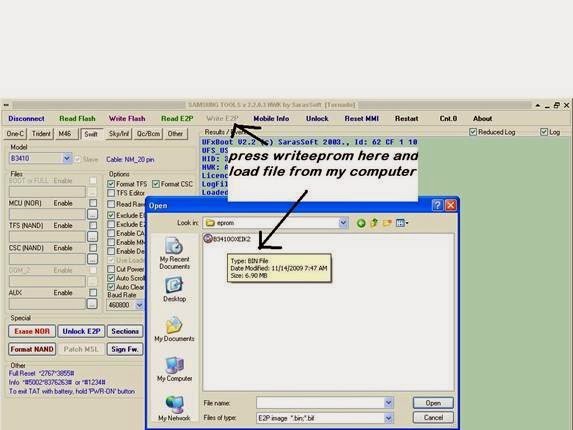
2. Now connect hwk to computer and attach mobile to hwk via desired flashing cable
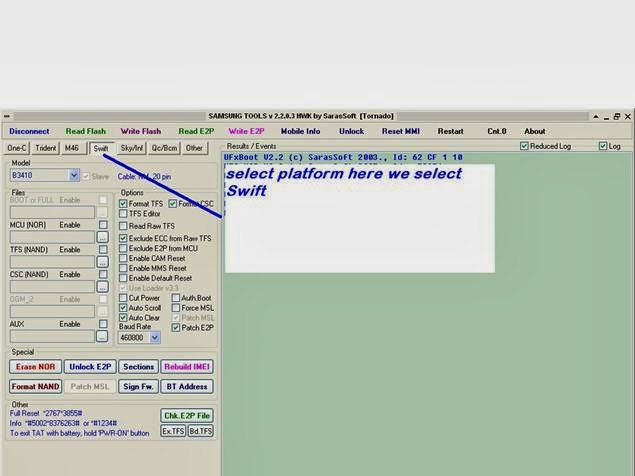
3. Select appropriate Samsung platform here we select swift from list


4. Now select model from model list here we select B3410 from model list


5. Now press write eprom button then it will ask for eprom file now locate eprom file and write it to mobile

6. After EPROM writing press reset mmi this option will full reset mobile after all process
Now check mobile it will show full network

Conclusion:
Before EPROM writing always backup first mobile EPROM because in case of any mismatching we can write back default backup.

Saturday, February 26, 2011

Sony ericsson k800 logo hangs then power off solution

Fault description
Sony ericsson k800 mobile has hanging problem mostly. This problem appears due to Internet virus or installing unauthorized game or apps. In such case mobile just shows sony ericsson logo on main screen and then power off after few second. And even we cannot charge mobile due to corrupted software.

Fault solution
For solve this problem we have to use flasher box that support sony ericsson flashing like setool box,universal box,hwk etc . Here we use hwk box for flash sony ericsson mobile.
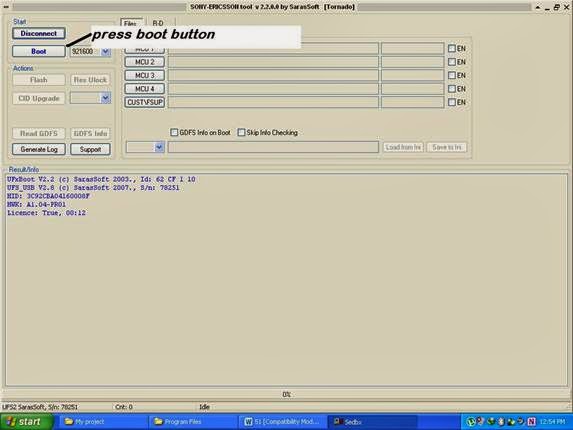
1. Connect box to pc
2. Open sony ericsson tool named SEdbx
3. Press boot button

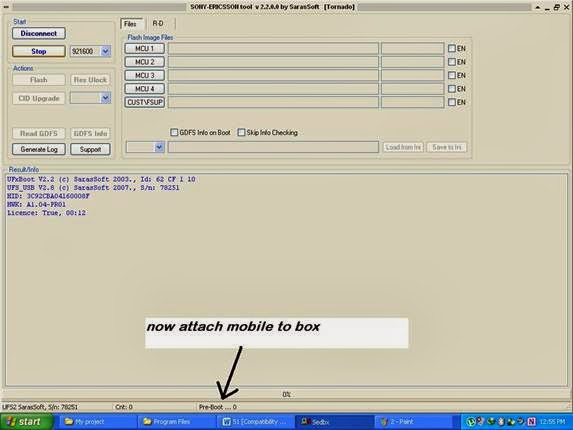
4. Now insert flash cable into mobile charging connector then box will detect mobile and will show all basic info about mobile like software version, phone cid,gdfs version etc.


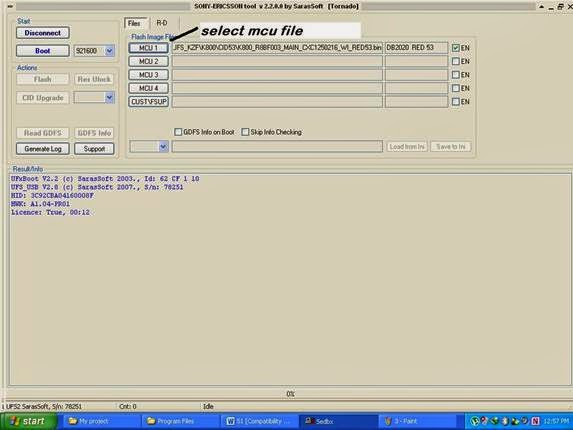
5. Now select flash file one by one. During selecting flash file we should take care about phone's cid and all file should be of same cid as mobile.
6. First select mcu bin file

7. Then select fs file

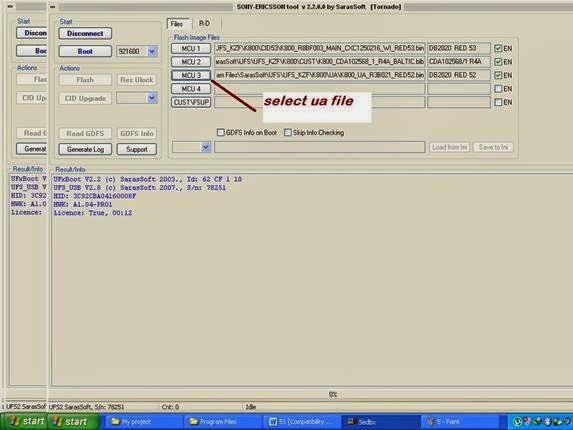
8. Now select ua file

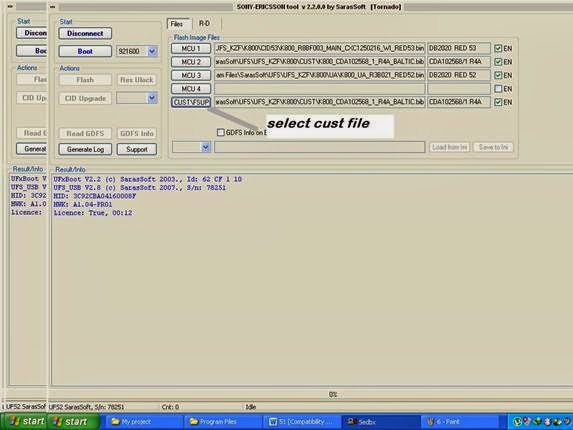
9. At last select cust file

10. Now press write flash button then box will start to upgrade mobile software and approx after 10 minuet all process will done and mobile will be in power on mode.      


Conclusion:
During flash file selection we should care about cid version. If we select wrong cid flash file then we will damage our mobile completely.
      

Wednesday, February 23, 2011

Fix no network problem in nokia 5800 using flasher box


Introduction:

In some cases when network just appear for 5 second and then no network ,in such type of situation we have to use flasher box for repair that problem . There are many flasher box available in market for nokia mobile like hwk,mx-key,universalbox,mt box etc..


Description: 

Network fault in nokia mobile sometime can be caused by software error.
There are two main reasons that cause network problem that are shown below:
A.      Setting mismatch
B.      PM (permanent memory) file error

A. Setting mismatch :
There are some networks setting in mobile due to these mismatching we get network error. 

Solution:
We can access these setting in setting – network setting - Network type –
If you are using 3g sim then select dual mode or 3g mode else select gsm mode

B. PM file error :
Pm (permanent memory) file is permanent file that is stored in mobile it contains mobile product data like product code, life timer and purchasing date, repairing date etc. if this file got any error then mobile have network problem that it just appears for few second then no network.

Solution:
Connect mobile to any nokia flasher box via fbus cable.  Here we use hwk box as example
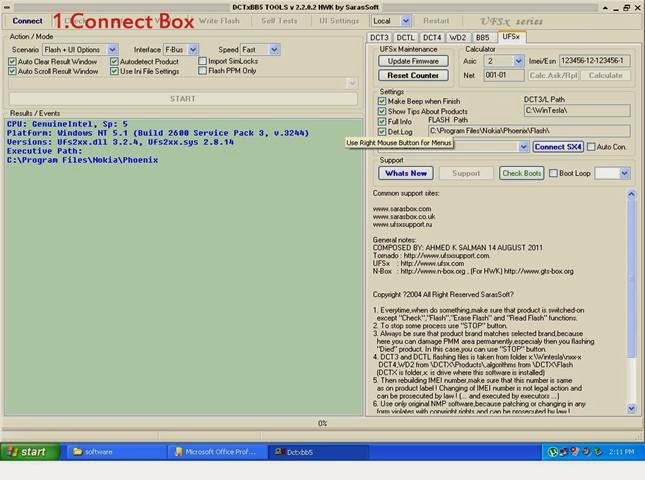
1.      Connect box - first connect box to pc
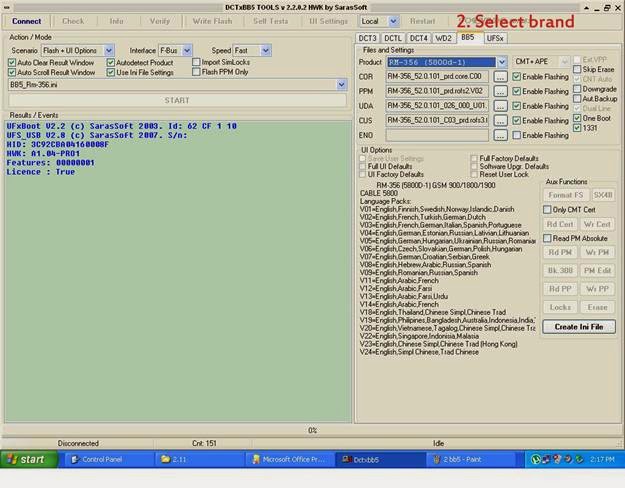
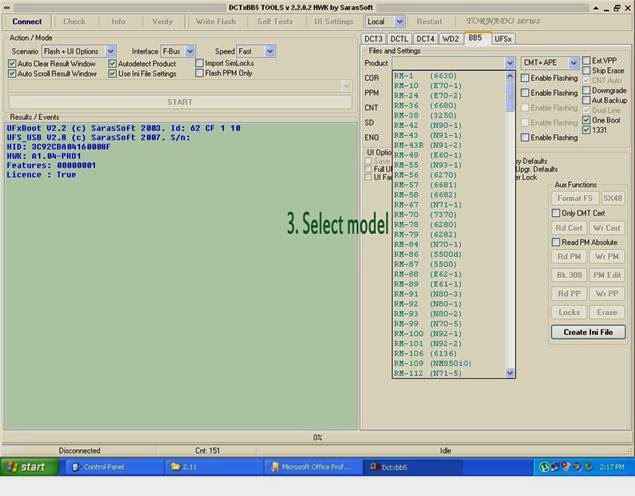
2.      Select brand -  Then select appropriate mobile brand like DCT3,DCT4,WD2,BB5
3.      Then select correct model from list here we take nokia 5800 as example.
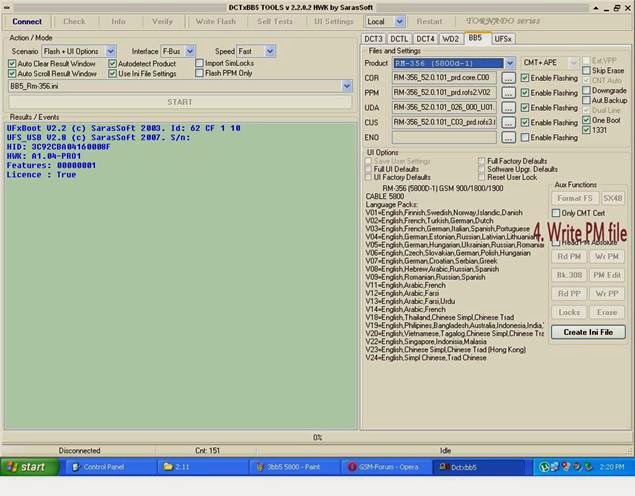
4.      Then write Appropriate PM file of that mobile.

Screenshots:

1.    Connect box: first connect box to computer and attach mobile.

2.    Select brand: we have to select brand here we select BB5 from brand tab. 

3.    Select model: select model from model list as shown below

4.    Write PM file: after selecting model press write pm file it will write pm file to mobile.  


Conclusion  :
In network fault repairing(using software method) we have to consider only one file PM file carefully because if we write wrong file then we can damage our mobile permanently so be careful when writing PM file .    
 

Wednesday, December 29, 2010

Nokia N70 not charging and no response error

Introduction:

Nokia N70 has a common fault that is charging error. There are two types of charging problem that described below.

1. Not charging
2. Charging no response

1. Not charging :

Fault description: Some time due to bad charger or high voltage from supply mobile got this error that when we insert charger it shows “not charging” message on screen

Solution:

A. First check that we are using proper battery BL5C for nokia n70

Here is image of BL5C battery:-


If we use Wrong battery like BL5CA then we got this error.
Below here is image of BL5CA battery:-


B. There is a track above data cable connector that is used to flow current through it, so cut the track shown in red line properly with appropriate equipment.

Here we show that track with image so how to cut:-


C. If above solution not work then finally first rehot the charging crystal shown in red marked and then change the crystal. That charging crystal is

Shown below:-


2. Charging no response :

Fault description:

In this fault mobile show charging ok but mobile does not store charge and it discharge immediately after few minutes.

Solution:


In this problem charging pin does not deliver appropriate current to charging resistance so Apply jumper from one charging connector point to charging resistance Shown in image below :-


Conclusion: If we properly follow all above tricks step by step then we can solve our charging based problem quickly.

Monday, December 27, 2010

Network Fault in mobile (n91 and 6131), no network solution

Network fault is a major fault in nokia mobile. This can be due to two major reasons:
  • A. Hardware problem (like physical damages and water damage)
  • B. Software problem
First we consider hardware problem in nokia mobile below.
Types of fault:

1. No network in mobile:
Description:
In some case mobile have no network when we manually search or set automatically mode.
This fault mainly due to hardware problem (in 75% cases) & in rest of cases this fault due to software error.

Solution:
1. First manually search network if any operator found but failed to register then check network antenna switch then use following tips:
  • A. Firstly heat over antenna switch section
  • B. Then apply antenna jumper same as in below image :-
Jumper :- Jumper is a bypass technique to work like antenna switch .jumper connect two or three point of antenna switch .

  • C.If problem persists then replace the network antenna switch.
2. In case when we manually search the network and no network found then check 

“PFO (power frequency oscillator)” sometime called PA.
Below is image of nokia 6131 pfo (pa)


  • A. First clean the pfo with acetone or white petrol then heat over pfo section
  • B. If problem persists then reball the pfo
  • C. If problem still persists then change the pfo.


Conclusion:


To repair network problem due to hardware reason we have to consider just two main component pfo and antenna switch to repair properly network problem. For this you should follow all instruction step by step. If we properly make right diagnosis and follow all instruction then our network problem will be 100 % solved.

Saturday, December 25, 2010

Nokia N73 power mobile blue screen hangs

Description:
Nokia N73 mobile has a very common and major fault “blue screen hang” means when we power on mobile then it just blinks for few minutes with blue light on lcd screen.

Fault reasons:
There are following reasons behind this fault –
  • 1. Lcd problem: Sometime mobile lcd got internally damaged due to this mobile get just blue screen or some time white screen problem.
  • 2. Software problem : In some cases when mobile software are corrupted then we got this error like white or blue screen on mobile and mobile hangs.
  • 3. IC problem : Due to hardware reasons like water damage and physical tampered mobile shows this problem

Solution :

1. Lcd problem : change the lcd screen and clean lcd connector.
2. Software problem : update mobile software (flash the mobile with latest version) then do UI setting.
3. IC problem : To repair IC Apply following steps to repair the problem serially


A. First check continuities on below shown points via continuity meter, if somewhere missing then apply following jumper.

B. If above solution don’t work then first remove red marked IC and then apply this jumper shown below :

C.If still problem not solved then apply following steps –

Step 1. Remove another remarked component in red mark
Step 2. Apply jumpers from one transistor to another point of other component.
Step 3. Connect two other components with one jumper.


Conclusion:

To repair blue screen hang problem using jumper we should have to check all continuity on appropriate point first after that apply jumper for quick and accurate problem solution.

 
Design by Free WordPress Themes | Bloggerized by Lasantha - Premium Blogger Themes | Laundry Detergent Coupons