Thursday, August 4, 2011

Sony Ericsson c702 mic not working solution

Fault description:
In sony ericsson c702 mobile some time mic does not work so there no voice to caller’s end.
This problem occurs due to physical problem like water damage or physical shock on mobile.

Fault solution:
For solving mic problem apply following solution step by step:
1.       First change new mic then problem might be solved.
2.       If still no solution then check track continuity from both mic point to mic resistance shown in image below  
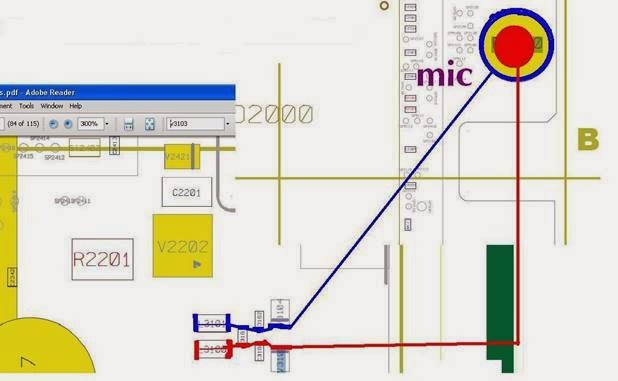

3.       First check track continuity from resistance L3101 shown in blue mark to mic’s positive point if there some problem in track then apply jumper as shown in image using blue line.
4.       Second check second track continuity from resistance L3100 shown in red mark to mic ‘s negative point if continuity missing there then apply jumper as shown with red line.

Now after all above tips and jumper setting mic will work properly without any problem.


Conclusion:
 Jumper setting is last solution for mic problem.  Because in Sony ericsson new generation mobile mic IC is inbuilt in CPU IC which is not changeable because it is shielded.

Nokia c6-01 mobile hanging no power

Fault description:
Nokia c6-01 is latest mobile but some time it hangs at just nokia logo or just white screen only then we can’t power on mobile. In some cases when we open any application in mobile then it hangs and we have to reinsert battery to power on mobile.

Fault solution : 
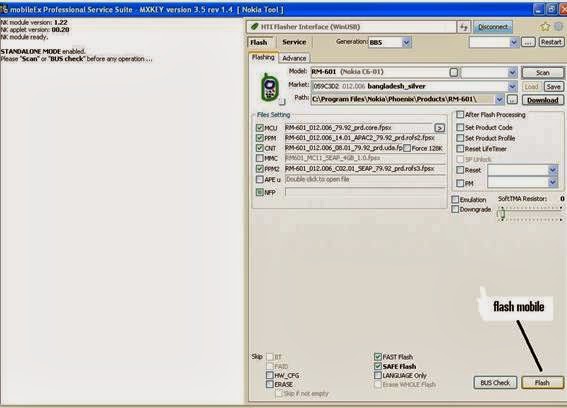
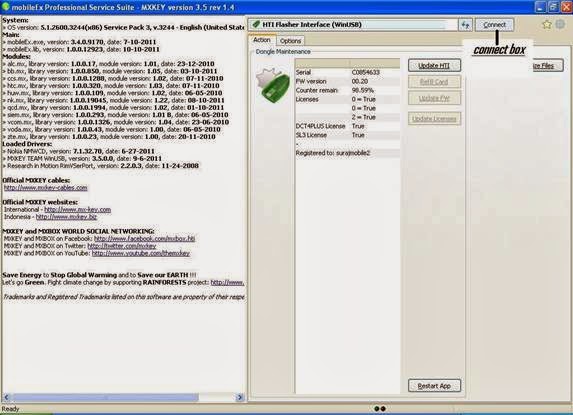
We have to flash mobile with latest version to repair mobile.  We can do it via many flasher box like ufs box,mxkey,best dongle,mt box , here we take mx box as example
For full flash mobile follow these steps:
 A.      First reset mobile using these code  “ *#7780# ” when we put this code then mobile will ask for security code then press 12345 these are default code then mobile  will automatically restarts and check that weather problem solve or not if no then apply second step . 
B. In this step we have to full flash mobile before this check that which version of software mobile have for this we have to enter  *#0000# then mobile will show its current software version now we have to upgrade this version for this apply following steps:
1.       Connect mx box to computer and insert mobile via fbus cale into mx box.


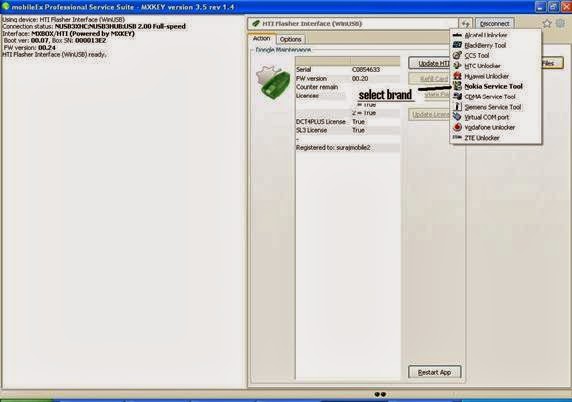
2.       Select appropriate mobile brand like nokia service tool here


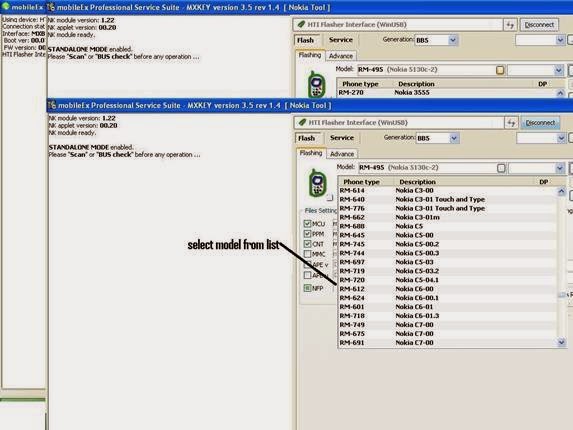
3.       Select exact mobile model no. from model  list

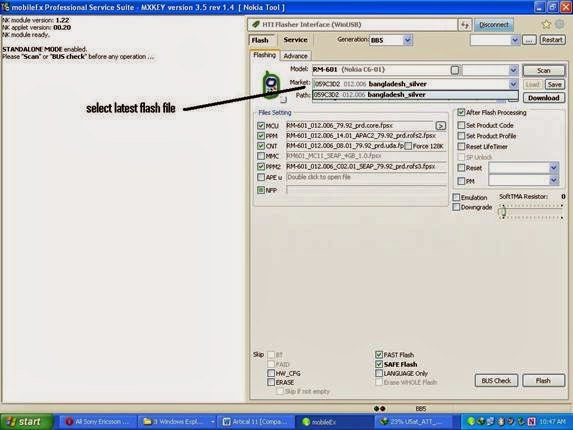
4.       Select latest flash file version from market row icon

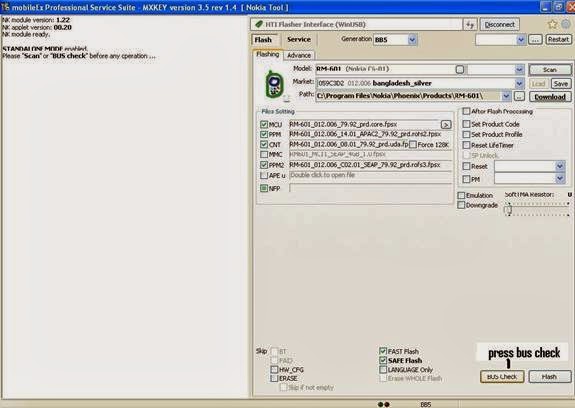
5.       Now press BUS check then mobile will show all basic info here

6.       Press flash button then mx box will flash mobile completely it will take approx. 7 minutes after full flashing it will show complete done .

Now our problem will solve.

Conclusion: 
For any basic problem in mobile first we should reset mobile using code *#7780# after that we should try any method because flashing is last and final solution for any software problem.

Tuesday, August 2, 2011

Samsung champ 3303 network can't make or receive calls solution

Fault description:

Samsung cham 3303k have network fault. In such condition we get no service message on screen or just few network indication bars on screen. So we can’t make any call or receive any call.

Fault solution:

For repairing network problem we have to proceed with these tricks step by step: 
1.       First manually search network in setting option if we found there desired network provider then register that provider else apply next step.
2.      Try to hard reset mobile using these code  “  *27678*2878# ”  then mobile will display this ,message on the screen “E2P custom reset mobile will take few minutes do not power off mobile” . Now check the network if still no luck then use hardware tricks described below
3.      Open mobile pcb and first clean full pcb with acetone and dry mobile completely 
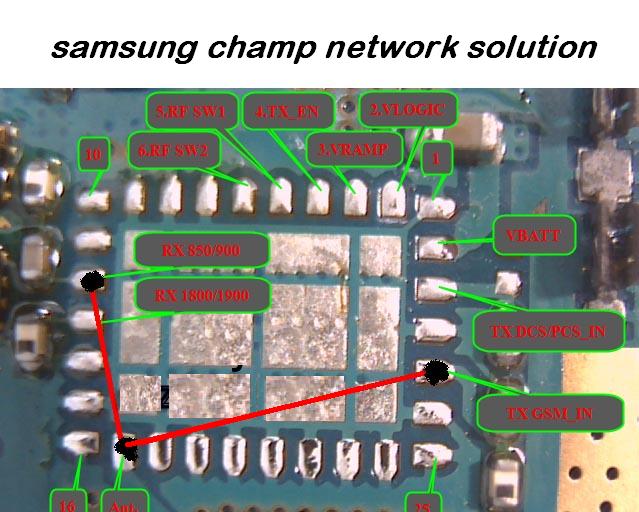
4.      If no solution yet then first remove PFO (power frequency oscillator) and apply following jumper and connect three points together according to network frequency we need. Here we use frequency of 850/900 MHz.
Image for the jumper setting is:


Conclusion:
During mobile pcb (printed circuit board) cleaning we should use only acetone or white petrol because other hard chemical can damage other mobile print and tracks. 

Unlock nokia n96 mobile

Fault description:
Country lock means that mobile just operates in predefined country frequency (like 850 mhz, 900mhz, 1800hz,2100 mhz etc. )Or network if we take mobile in different region or different country then it shows invalid sim card  or  insert correct sim card .
 So we can’t use any sim card in mobile. In this case mobile is called locked by country lock.
  
Fault solution:
This problem can only be solved by software methods using any flasher device that support mobile unlocking of that particular brand.
To solve this problem we have to use following tricks:
A.      First we should flash mobile to that selected country variant according that product code each country have.
B.      All product code flash file available on support area. So download exact country code variant from support area. Product code can be found on back portion of mobile below battery near imei no.
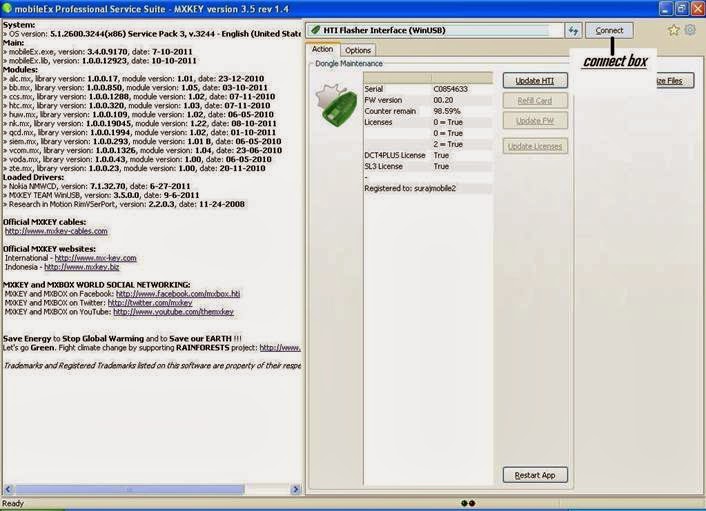
C.      Then open mx box
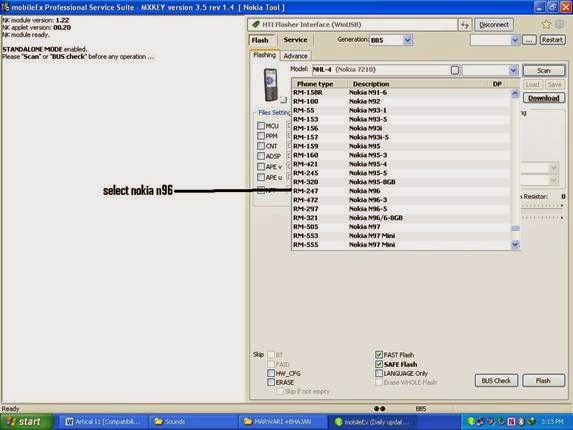
D.      Connect box and select appropriate brand and correct model no.

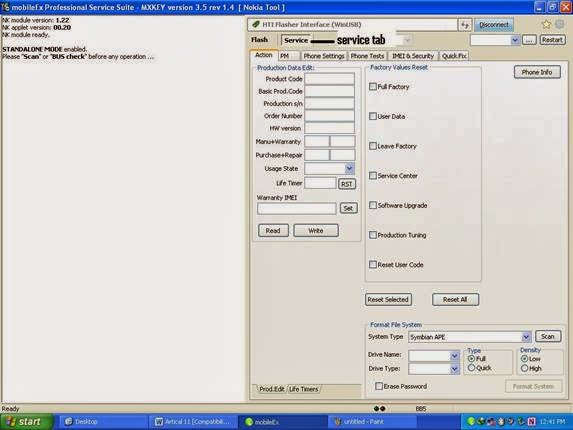
E.        Then go to service tab


F.       In service tab select IMEI and security tab


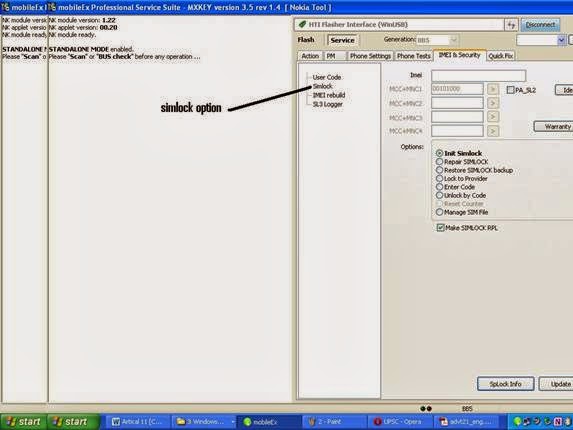
G.        Here select simlock option


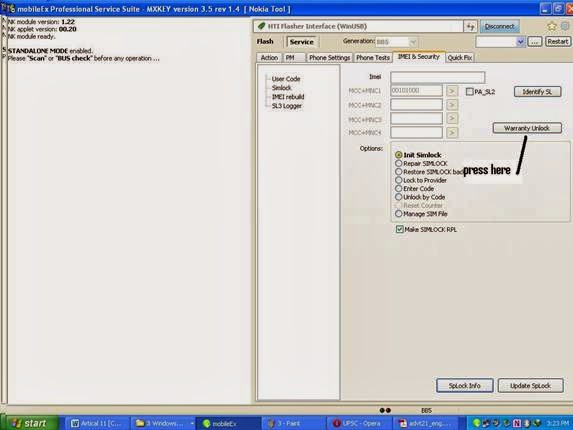
H.      First press identify button it will show that which country code has been locked in mobile then select desired country name in lock box and then select any operator that are available in that column and then press warranty unlock


Then unlocks by provider option it will ask for internet connection and after few minute processing we have fully unlocked mobile.

Conclusion: 
For network unlock we have to first determine product code from which phone is locked and country variant for which we have to unlock mobile.

Sunday, July 31, 2011

How to solve not working contact service fault in nokia 7210c

Fault description:

Nokia 7210 has contact service fault due to bad pm file, in some cases pm file corrupted in mobile so we get this error that when we power on mobile then it just shows contact service message in red letters on screen and then power off after few seconds.  

Fault solution:
1.      First we should flash mobile with latest version. we can flash mobile using any flash tool like mx key or ufs or jaf box or mt box
2. Now check weather problem solve or not if no then apply next step.
3.We have to write full pm file (permanent memory) in mobile. All pm file can be downloaded from support site of our flasher box. For write pm file using mx key we have to follow following steps:-
 A.      First connect mx box to computer


B.      Then select appropriate mobile brand here we should select nokia service tool


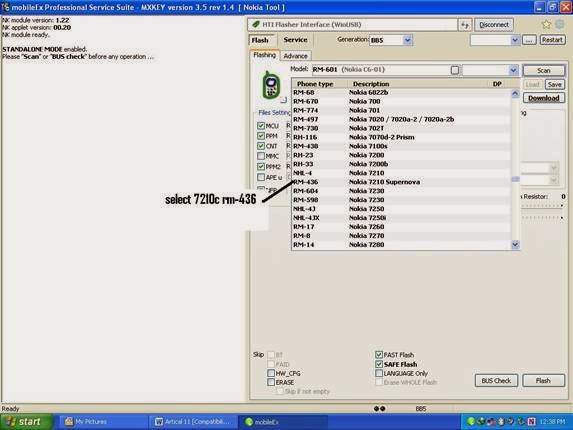
C.      Then select appropriate model here we select nokia 7210c rm-436

D.      Then go to service  tab


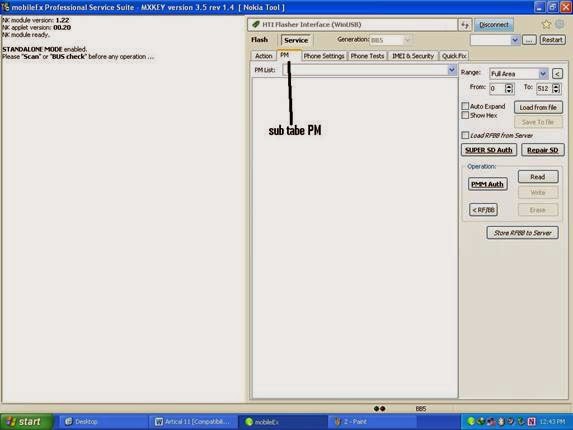
E.      In service tab open sub tabe PM


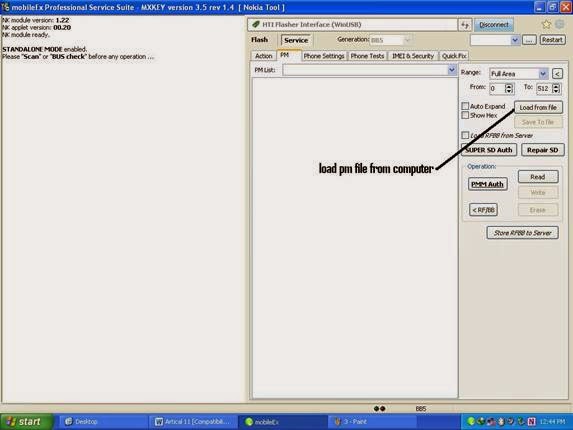
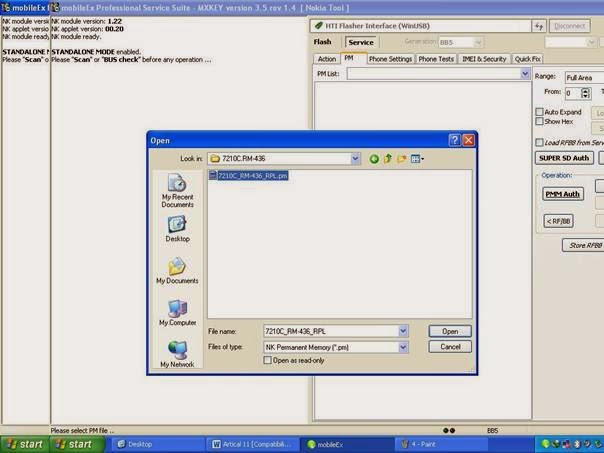
F.        Now press load from file here we have to open PM file from our computer location where we had stored it.


G.      Here we select 7210c pm file.


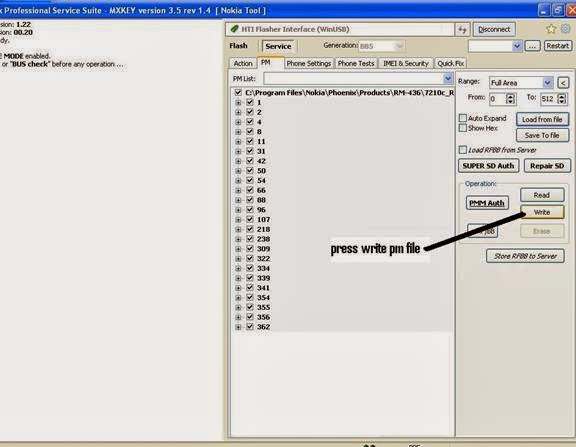
H.      Now write full pm file of all section.


Now contact service problem will solve.
If still we get the error then we have to buy new rpl file from server.
 Conclusion:
PM (permanent memory) file is most risky file in mobile phone because it stores all important data of mobile so during writing pm file we should take care that file should be same as mobile model no. otherwise we will get further many error.

Thursday, July 21, 2011

Samsung E1110 doesn't start blinking solution

Fault description:

Samsung mobile sometime doesn’t start when we power on mobile it just hangs on Samsung logo only. This fault occurs because of internet problem or corrupted software.

Fault solution:

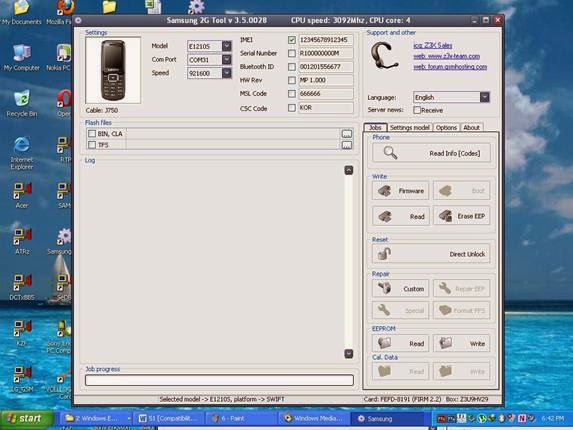
For this problem solution we have to use flasher box z3x or hwk. Here we use z3x box. Use these steps for successful flashing:

1.Connect z3x box to computer


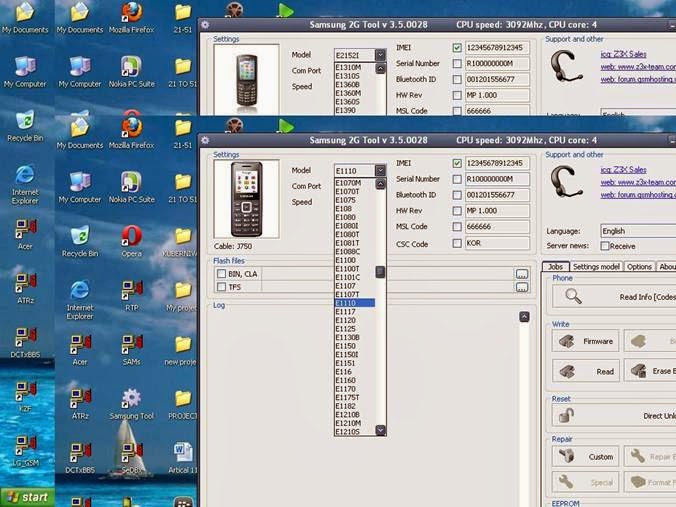
2.Attach mobile via flashing cable as shown in cable name icon and select mobile model from list


 Here in below image we can find exact cable for mobile as shown below


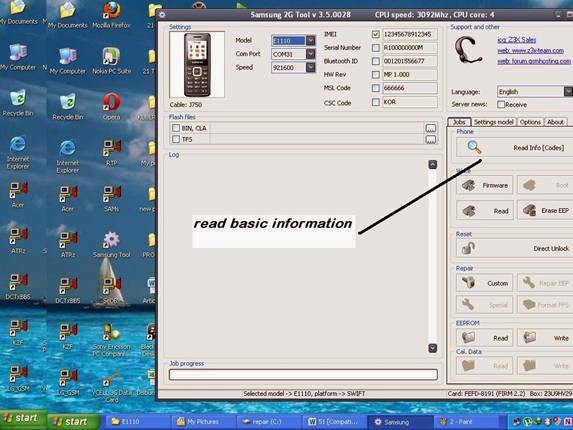
3.      Press read info button it will show all basic version we should remind that software version should be used newer then mobile already have. 


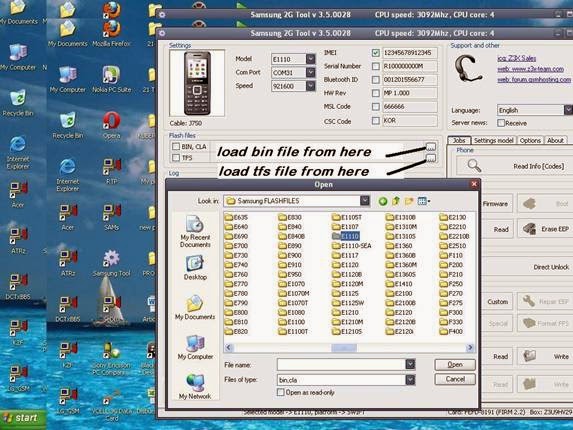
4. Now select  bin file and tfs file from my computer as shown in image below :


Monday, July 4, 2011

Sony ericsson X10i charging drains battery or stops

Fault description:
Sony ericsson Xperia X10 has a major charging problem some time we had noticed that mobile just shows charging indication on display but mobile drains battery quickly . In some cases after few minutes of charging it stops , in such cases we have to check hardware section so here we describe how to solve charging problem of Xperia X10 i .   
Fault Solution:
There are four common solutions for this problem so we have to proceed step by step.

1. First we should change the battery because in some cases the battery has an internal problem in its circuitry and due to that we got an error.

2. Then we should try to change the charger becomes sometimes the charger's internal component gets short circuited, then the charger shows false charging and we get a false charging error.

3. Now open the mobile and clean the mobile PCB and charging connector, then check the charging.

4. If the above tricks don't work then check the line continuity from charging point 1 to the transistor below this point show in the yellow mark. If there is no line then apply the jumper from point 1 to this transistor.

5. Check point 2 it should be grounded.

6. Now check charging point 5. It should have the line to the component below it shown in the green mark point 2. If there is no line then apply the jumper.

7. Now apply the jumper from the charging point and 4 to 4 point (ball) charging the IC on the upper side 2 point (ball) as shown in red mark and 4.


8. After all of this is done, if the problem still remains then finally change the 4 point charging IC.

Conclusion:
For the charging problem solution we should follow all of the procedures step by step, because if we use step 4 and 5 first then there is a chance it could damage the mobile.

Just take things slow and do what's necessary step by step without rushing. You will solve the problem in the end, but you just have to be patient. Rushing things and making mistakes is only going to cause frustration and aggravation, and in the long run could end up causing permanent damage. It just isn't worth it to hurry through these steps.

And you should always check to make sure that the jumper wire is in good condition and the connectors are clean.

 
Design by Free WordPress Themes | Bloggerized by Lasantha - Premium Blogger Themes | Laundry Detergent Coupons